2/5/2010
(C) 2010 William Schmidt, Ph.D.

(C) 2009 www.tigersoft.com 858-273-5900 william,_schmidt@hotmail.com PO Box 9491, San Diego, CA 92169
| In this section, we want you to be able to see the
key Tiger Closing Power Lines and produce the trading results for them. NEM is a typical example. 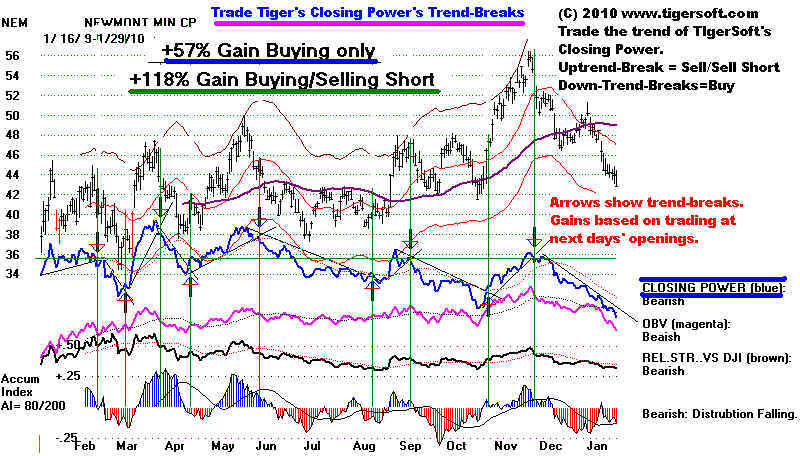
|
Starting Off With TigerSoft
1.) Installation - Follow all the
instructions on the link provided you by TigerSoft.
2) Place the icon for Peercomm on your desk top.
Click Start + All Programs + find Tiger Investment Software
+ with the left
mouse key down drag the Peercomm over to your desk top.
3) Start the TigerSoft programs.
Double-click the left mouse-key pointing to the Peercomm icon.
4.) Set the size of the graph on your monitor for the Peerless-2008(9) charts.
Use
Peercomm + Peerless-2008/9 + Run Set Ups + Initial Graph Choices(2) + 550 + 750 + Y + N +Y
Then use Peercomm +
Peerless-2008 + Run Set Ups + Initial Graph Choices(1) + Y
Thereafter use Peercomm +
Peerless-2008.
5) Important - Use this Peerless
program from Peercomm for all charts, signals and
internal strength indicators on the DJI and for stocks.
Use the TigerSoft program mostly
for ranking and flagging operations. If you use it for graphing,
you will probably need to change
the monitor's setting for 600x800.
6) To view the charts selected by hitting TigerSoft from Peercomm,
you will need to more basically
modify the screen resolution settings for your entire computer to
800x600:
MyComputer + Screen Resolution + 800x600
7) Download some stock data from us.
The data now is available at www.tigersoft.com/1KJ2
Go there with your web-browser or using Peercomm + Internet.
This page has three sections.
Top 1/3 of page - light green background ANNOUNCEMENTS
Middle 1/3 of page - tan background HELP SECTION and HINTS
Bottom 1/3 of page - light violet background - DATA
For purposes of illustration open and execute two of these data
sets.
#3 NASD-100
STKS.- The data will be saved into c:\nasd-100
#9 HOTSTKS (450) The data will be saved
into c:\Hotstks
These are stocks that have recently made 12-month highs.
Opening and executing these
files will place the current data into your computer
in the designated
directories.
8) Close the Tiger Data page and start Peercomm.
. Peercomm + Select + pick "hotstks" or
"nasd-100" (or any group, except "funds"
whose data you have gathered) + OK
9) Back at the Peercomm screen click
TigerSoft
Charts + Run/Setups at the upper left + Run Nightly Analysis + OK
You can see how
quickly the stock data is analyzed. To speed it up, close other programs
that might be running. The speed
here is also a function of how fast your computer
can read or write files. When done
click OK.
10) Look at the stocks that the computer thinks are most bullish. Here are some
suggestions.
Peercomm + Peerless 2008 + Daily Stocks + any of the categories in the middle of
the page + OK
For example #8 Recdvol -
highest volume for last 250 days. (Careful. Stocks could be falling.)
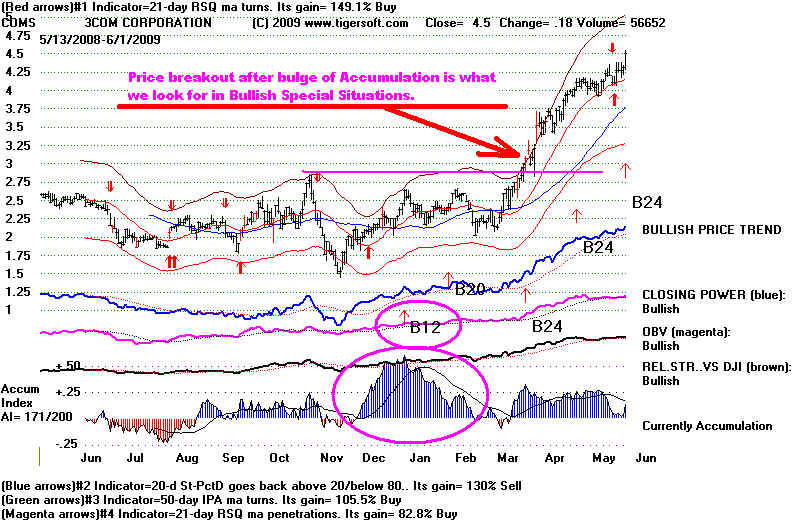
Start with #12 Bullish
On 6/1/2009 here is the most bullish stock that pops up.
#14 Toprel - Best performing stocks over last 250 days.
: #15 New highs - stocks making 12 month highs
#21 Both Up - Both Opening and Closing Power are rising.
#23 CloserNH - Closing Power
makes a 65 day high.
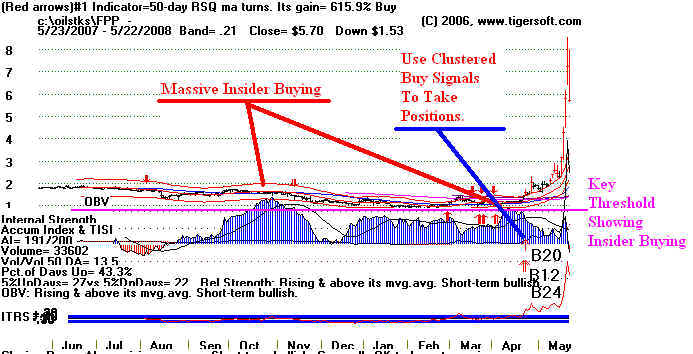
#41 IP21ov25 - IP21>.25 (IP21 is the current value of the Tiger
Accumulation Index.)
B10 - new Buy B12 signals.
B12 - new Buy B12 signals.
11) Look at the next stock in a flagged list of stocks.
With the Num-Lock key off, hit 2 (down arrow key) on right
sight of keyboard to go to next stock
in
the a list..
With the Num-Lock key off, hit 8 (up arrow key) on right sight of keyboard
to go to previous stock
in
the a list..
(This is only a small part of all the uses of the Power-Ranker. )
12) Look at any chart in the directory
Peercomm + Peerless 2008 + Daily
Stocks + any symbol in the list +
down-arrow(2) to next stock
13.) Basic Graph Display - Experiment with all the items in each of
the columns. Read the Help section,
You can always Restore the Original Chart under Operations.
You can simplify the chart
and clear away any indicators or signals using Operations + Restore Simple Bar Chart,
14.) Explanation
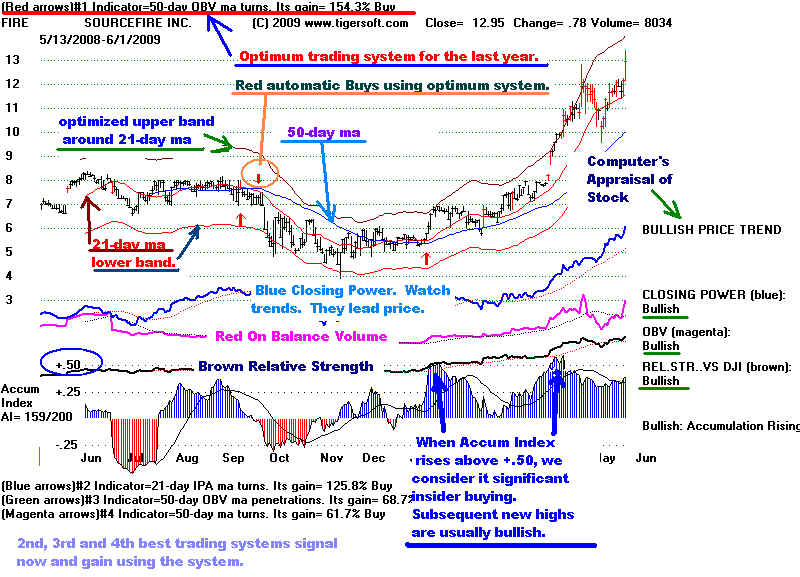
of what you see with the basic TigerSoft chart.
Optimized trading system, year's results and current signal at top of chart.
Symbol and company name, Closing price, change and volume.
Automatic Red Buys and Sells
21-day ma (red)
Optimized upper and lower bands to bracket 93% of trading.
Red 21- day ma. A rising 21-day ma is apt to be support. A falling 21-day ma
is apt
to be resistance.
Blue 50-day ma
Red price bars - unusual volume.
Blue Closing Power. Look for trends, trend-changes, Closing Power (CP). moves ahead
of prices to
new highs or new lows, non-confirmations of new highs and new lows.
Closing Power leads prices usually,
Red OBV (aggressive buying or selling line). Compare with prices.
Brown Relative Strength Lines.
Red and Blue Accumulation Index. Accum.Index moves over +.50 show insider buying.
Look for divergences from price. Negative Red readings with stock at the upper
band are bearish. Blue Positive readings with the stock at the lower band
are bullish. Watch for crossovers by the Accumulation Index above and below
its 21-day ma. We want to see the Accum. Index to be at least +.20 to buy a stock
making a new high.
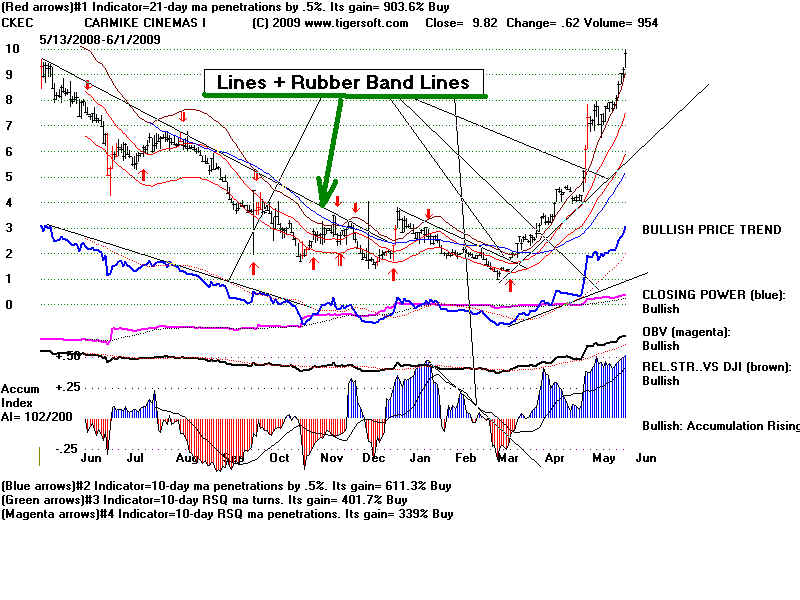
15.) Lines: Rubber Band
Lines and Diagonal Lines are drawn on any TigerSoft chart between
any two points you pick. The diagonal line will show you the price where the
diagonal
line crosses on the last day, Lines that go through 3 or more points are considered
well-tested and more important.
16.
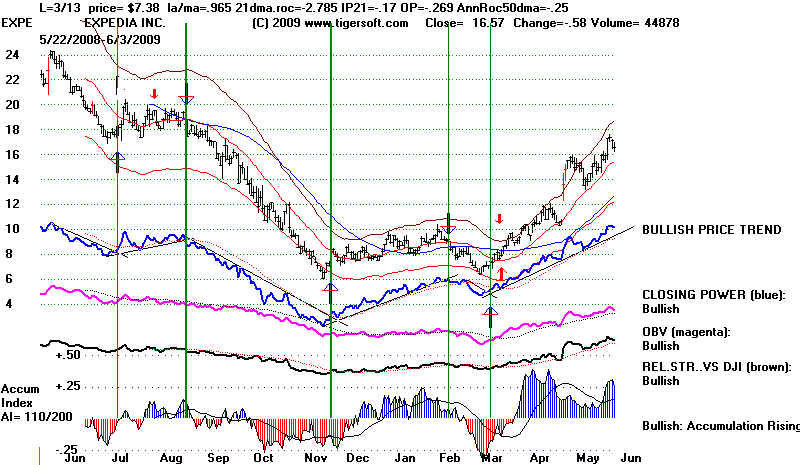
Vertical Lines and Key Values
With a chart on the screen, choose Lines
+ Vertical
This lets you see the key values for any day. You can place buys and sells where
there
are Closing Power trend-breaks or any place you like.
Gains Using Buy and Sell Signals
Based on TigerSoft's Closing Power Trend-Breaks
17. TigerSoft Fixed Rule Signals
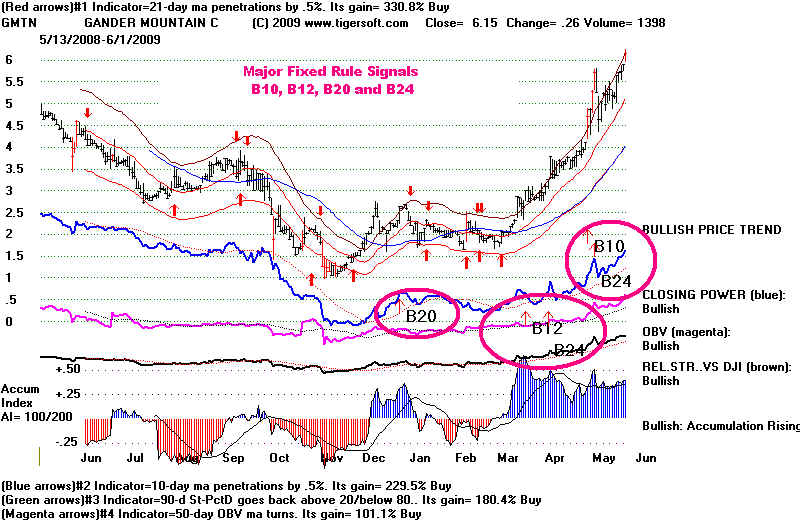
The most bullish signals for individual stocks are B10s, B12s, B20s and B24s.
These do not appear automatically. They must be requested with a stock chart
already displayed: Signals(1) + (1) Major Buys
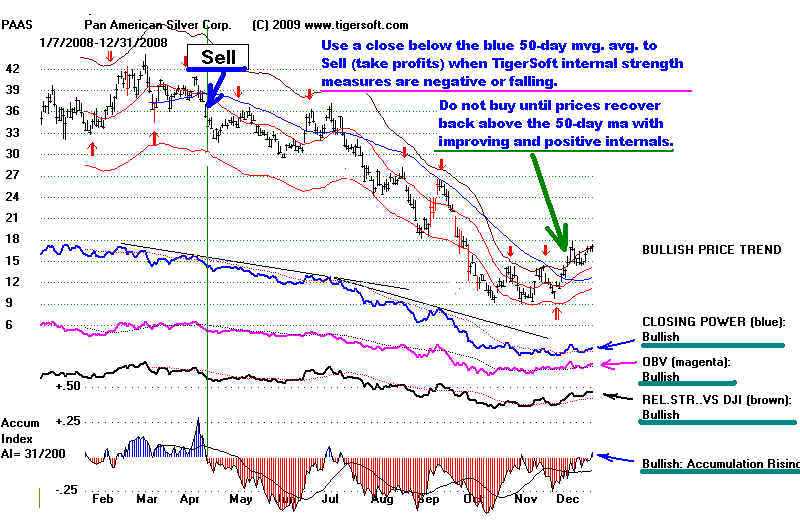
When a high volatility stock drops back below its blue 50-day ma with the
Accumulation Index negative and the Closing Power zig-zagging lower and below
its 21-day ma, we would normally sell, especially if the stock has run up a 25% or
or more from a base. There are many examples of this on our website.
Use the signals under Signals(1) that are appropriate for the trend of the
stock you are watching.
The definition of a signal as well as each of the various indicators can be studied
under Help with a chart on the screen.
Instructions:
Peercomm + Select + nasd-100 + OK
Peercomm + Peerless-2008 + RIMM + Lines + Vertical Lines + Point Mouse Click
for each trend-break.
Operations + What Happens to $10,000
Buying and Selling Short Gain = +335.9% Buying Only = +139.3% Selling Only = 82.2%
Starting with $10,000 and allowing $40 per trade for commissions and slippage.
Initial $10,000 account at end of period would be worth $43,586 from 8/5/2008-6/3/2009
Buys and Sells can be placed Buy / Sell Signals
sets of fixed rules. Use Signals(1) Display User Selected Signal or - 1-19
using Peerless DJI-saved signals Signals(1) - DJI Saved Signals
specific trading systems Signals (2), Signals(3)
single Buy or Sell by location. Lines + Vertical Line (User Set Signal, B28, S28)
With a chart and Buy and Sell signals on the screen, you can see when they occurred
Operations + Trading Results
and what the trading results would have been with $10,000, either trading the day of the signal at
the close or the next day at the opening. Use Operations + What Happens to $10000
20 Indicators
Over the years, we experimented with lots of indicators. The ones we make mose use
of now are TigerSoft's creations:
Closing Power,
Opening Power,
Closing Power Percent,
Accumulation Imdex,
Relative Strength Quotient
IPA
OPct.
250-day-rate of change of 21-day ma = "ANNROC"
See TigerSoft's Unique Tools to Spot Insider Trading
Please do not divulge these indicators to non-Tiger users.
We also use volume and Hoe Granville's On-Balance Volume.
You can see we used fixed interval bands and regression channels a lot.
TigerSoft was the first company to use the simple concept of bands built
a fixed percentage away from a 21-day ma.
Please experiment and see HELP + Indicators' Term Concepts
Here are some more TigerSoft links to explore.
http://www.tigersoft.com/2244/ANSWERS1.htm The TigerSoft Confirmed Trend Is Your Friend
Basic TigerSoft's Rules for Profitably Trading Stocks and Limiting Risks.
Example: 1400% Profit since August
2008. What Could Be Simpler?
Insider Trading: The Mother's Milk of
Wall Street.
Now TigerSoft Let You Legally Trade As
Though You Were An Insider.
Watch The Insiders and The Rest Is Easy.
TigerSoft's
Explosive Super Stocks
Read the The
Tiger Blog
Google a subject, "head and shoulders" for example
and "TIGERSOFT"
There is more than what we
have shown here. If you have questions, please email us
william_schmidt@hotmail.com